 key), and it
might be a good idea to start with a clear screen (press the
key), and it
might be a good idea to start with a clear screen (press the
 key).
key).
Make sure that the calculator has been turned on (press the
key), and it
might be a good idea to start with a clear screen (press the
key).
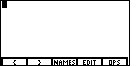
|
In order to create a list we will need to be able to
use the left brace, {, and the right brace, }. These
characters are not on the keyboard. We press the
 key
and then the key
and then the  key
to open the LIST menu at the bottom of the screen.
Figure 1 shows the LIST menu.
We select the items from the menu by pressing
the "function key" just below the menu item. key
to open the LIST menu at the bottom of the screen.
Figure 1 shows the LIST menu.
We select the items from the menu by pressing
the "function key" just below the menu item.
|
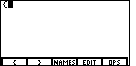
| We want to start our list with a left brace, {.
Therefore, press the  key
to select the left brace from the menu and to paste that brace onto the screen. key
to select the left brace from the menu and to paste that brace onto the screen.
|
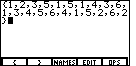
| A LIST is
a sequence of numbers separated by the comma character. Our list is the values in
the data set. Therefore, we enter the values one after the other, just as they were
given, and place a comma between values.
The key sequence is


 .
We conclude the LIST with a right brace, selected from the menu by
pressing the
.
We conclude the LIST with a right brace, selected from the menu by
pressing the
 key. This should leave the screen
as in Figure 3. key. This should leave the screen
as in Figure 3.
|
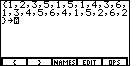
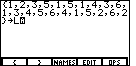
| In Figure 3 we have constructed a LIST.
However, we want to save that LIST.
To do this we need to store the list.
We press the  key to paste the "store" symbol,
  , on the screen, as indicated in Figure 4.
This also causes the calculator to shift into ALPHABETIC MODE, as indicated
by the change in the cursor, from a block, , on the screen, as indicated in Figure 4.
This also causes the calculator to shift into ALPHABETIC MODE, as indicated
by the change in the cursor, from a block,  ,
to a block with an A in it, ,
to a block with an A in it,  . .
|
| We store the list to a variable. We get to make up the name for that variable.
In this example we will store the list to a variable called L1.
Variable names need to start with a letter,
and then they can be up to eight characters
long, using letters and digits.
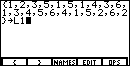
To get the
"L" we press the  key. This will produce
Figure 5. Now, to complete the name we need to
shift out of ALPHABETIC MODE. key. This will produce
Figure 5. Now, to complete the name we need to
shift out of ALPHABETIC MODE.
|
| Press the  key shift out
of ALPHABETIC MODE and then press the
key to generate the "1",
as in Figure 6. key shift out
of ALPHABETIC MODE and then press the
key to generate the "1",
as in Figure 6. |
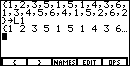
| Through Figure 6 we have constructed a list and formulated
the command to store it in a variable called L1. However, we have not told
the calculator to perform those actions. We do this by pressing the
 key.
The calculator responds by displaying the new list. Note that there are
no commas in this displayed list. Furthermore, the list runs off the screen,
with three dots, ..., following the 6. Those dots indicate that there is
more to the list. We can see more of the list by pressing the key.
The calculator responds by displaying the new list. Note that there are
no commas in this displayed list. Furthermore, the list runs off the screen,
with three dots, ..., following the 6. Those dots indicate that there is
more to the list. We can see more of the list by pressing the
 key again and again. key again and again.
|
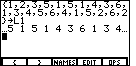
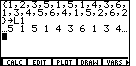
| Figure 8 shows the result of having pressed the
key 6 times.
Thus far we have created our data list and stored it in the variable L1.
|
| Now we are rady to perform the statistical computations. We close
the LIST menu of Figure 8 by pressing the
 key. Then we open
the STAT menu by pressing
and key. Then we open
the STAT menu by pressing
and
 . The STAT menu is shown at the bottom of
Figure 9. . The STAT menu is shown at the bottom of
Figure 9.
|
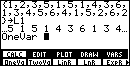
| Of the options of the STAT menu, we want
to select the first option, CALC.
To do this we press . That
will open the CALC submenu shown at the bottom of Figure 10.
Within that submenu, we want to do the OneVar operation, which is
abbreviated to OneVa as the first item in the submenu. We press
|
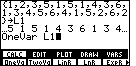
| The full command that we want is to tell the TI-86 that
the next key we press is to be its alphabetic option. Then press
to create the "L". Because the
shift to alphabetic mode was only good for one character, we
are back to normal input mode. Thus, press
to produce the "1".
|
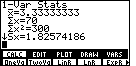
| We formed the entire command in Figure 11. Now we press
to perform the command.
The TI-86 responds by doing the computations and by displaying the results.
The line  gives
the mean of the data set.
Note that the symbol gives
the mean of the data set.
Note that the symbol  ,
read as "x bar", is the standard symbol for the
mean of a set of data. ,
read as "x bar", is the standard symbol for the
mean of a set of data.
The next line, Just to the left of the |
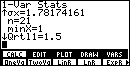
| We press the  key 4 times to move the display down a that many lines. Now we can see some
new values. The line
key 4 times to move the display down a that many lines. Now we can see some
new values. The line  gives us
the value of the population standard deviation. Again,
note that gives us
the value of the population standard deviation. Again,
note that  , the lower case Greek letter "sigma",
is the
standard symbol for the population standard deviation.
This is followed by the
line , the lower case Greek letter "sigma",
is the
standard symbol for the population standard deviation.
This is followed by the
line  , which simply reports that there
are 21 values in the data list. (When doing a problem on the calculator, this is
the value that should be checked first.
After all, the computed results will not be right if
the number of values in the calculator list is not the same as the number of numbers in
the original problem.) , which simply reports that there
are 21 values in the data list. (When doing a problem on the calculator, this is
the value that should be checked first.
After all, the computed results will not be right if
the number of values in the calculator list is not the same as the number of numbers in
the original problem.)
Then, the output goes on to report the minimum value found in the list,
|
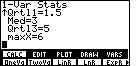
| We press 3 times
to shift down the output display. In Figure 14 the line
 gives the value of the median
of our data. The line gives the value of the median
of our data. The line  gives the third quartile point. And, finally, the line
 gives the maximum value found
in the list. gives the maximum value found
in the list.
|
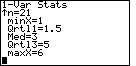
| Before we go any further, let us close the submenu by pressing the
key, and
then closing the STAT menu by pressing
again.
Note, in Figure 15, that the statistical results display actually shifts
down to fill the lines that were used to hold the menus.
|
Now we will turn our attention to finding the mode of the data. Unlike the finding the mean, the TI-86 does not have a built-in process for finding the mode. We have a program written for the TI-86 that will help in finding this value. That program is called COLLATE3. You can get a copy of the program from another TI-86 that has it, or you can use the TI-Graph Link program to transfer COLLATE3 from a PC that is storing it. The page collate3.htm holds a listing of the program (in case you want to type it into your calculator) and it has a link that will allow you to download the program to a PC (for subsequent transfer via TI-Graph Link).
| To get to our program we could type the name of
the program, or we can use the menu system to find the
name and paste it onto the screen. To use the latter approach we press
 to open the PROGRAM menu. to open the PROGRAM menu.
|
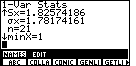
| Next we press
to open the NAMES submenu, a
listing of the program defined on this calculator. Figure 17 shows
the first five programs, listed in alphabetic order,
that are defined on this particular calculator. We are looking for
the COLLATE3 program. The TI-86 has abbreviated that name to
COLLA in the submenu.
|
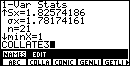
| Pressing
will paste the full name of the
COLLATE3 program onto the screen, as in Figure 18.
|
| To actually start the program we need to press the
key. The COLLATE3
program first clears the screen and then it asks us for the name of the
list that contains our data.
|
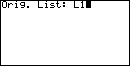
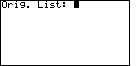
| We can respond to the prompt of Figure 19
by pressing
to generate the name L1.
|
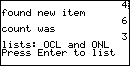
| Having formed the response in Figure 20, we press
to move, eventually, to Figure 21.
Actually, as the TI-86 process the L1 list, the COLLATE3
program produces line after line of output. Only when the
program has finished that processing does it pause to
display the results in Figure 21.
|
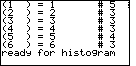
| We press the
key to move to the
next portion of the COLLATE3 output. Figure 22
shows that information.
This output is given as three columns
of values. The first column will always start with 1 and increase by 1 for each line of
output. This first column is counting the different values found in our data set.
The second column displays the different values found in the data set. These values
will be sorted from lowest to highest. The second column in Figure 22 indicates that we have values
in the data set ranging from 1 through 6. The third column of the data set indicates the
number of times each item in the second column appears in the data set. Thus, we see that
the value 1 appears 5 times, that 2 appears 3 times, and so on.
We can examine the second and third columns to find the mode value of the data set. The mode will be the value in the second column that corresponds to the largest value in the third column. In Figure 22, 5 is the largest value in the third column. Therefore, the mode of the data set is 1, the value of the second column that corresponds to the 5 in the third column. We can also use the output of Figure 22 to find the median. The median was a result produced by OneVar above. This is just another way to arrive at the same result. Remember that the median is the middle value in the sorted data values. We remember, from Figure 13, that there were 21 values in our data set. That means that if we sort the values, then we want the 11th value (it will have 10 values that are less than or equal to it and 10 that are greater than or equal to it). From Figure 22 we see that there are 5 1's, 3 2's, and 3 3's. Therefore, the 11th value is a 3, which makes the median of the data set be 3. [We will see yet another way to find the median in the second example.] |

| In the example that we are using there are only six different values. Therefore,
Figure 22 gave the complete list of values in the data set. We are ready to move
on from that report. We press
to allow COLLATE3
to continue with its work. That program moves to use a feature of the
TI-86 to produce a histogram fof the data that we are using.
Figure 23 has that histogram.
|
Figures 16 through 23 demonstrated the use of the COLLATE3 program. We will return that program in the second example data set below for a more complete illustration of the output. However, Figure 21 had some information that was not explained at that time. In particular, Figure 21 included a reference to two new lists, OCL and ONL. We will take a moment to examine these lists, which are produced by the COLLATE3 program.
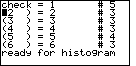
| To move to Figure 24 we need to close the
histogram. We do this by pressing the key.
Note that Figure 24 returns to the display from before the histogram, essentially
Figure 22, but that the word "check" is now in the top left corner on the screen
and the cursor is on the next line.
Any work that we do will be writing over the existing screen.
|
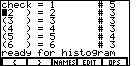
| To view the new lists we will open the LIST menu by pressing
.
|
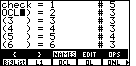
| Then we will select the
NAMES option by pressing the
 key. In that submenu, on this calculator, we see the OCL name in the
third position. We can select that name by pressing the
key. This pastes the OCL name where the
cursor was.
key. In that submenu, on this calculator, we see the OCL name in the
third position. We can select that name by pressing the
key. This pastes the OCL name where the
cursor was.
|
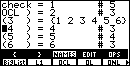
| Pressing the
key will cause the
TI-86 to display the contents of the OCL list.
This display is on the third line of the output in Figure 27.
The other material on the screen is just too distracting. We need to clear
the screen and do this again.
|
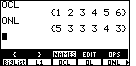
| Let us clear the screen by pressing the
key.
Then we can display both the OCL and the ONL lists
by pressing
 .
Looking at the output in Figure 28,
we can see that COLLATE3 creates OCL and ONL to
hold the different values that it finds and the frequency with which each value
appears.
.
Looking at the output in Figure 28,
we can see that COLLATE3 creates OCL and ONL to
hold the different values that it finds and the frequency with which each value
appears. The submenu in Figure 28 has a small arrow at its extreme right. This means that there are more list name to display. |
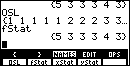
| We press
 to shift the display in the submenu.
That new portion of the submenu appears in Figure 29. We will examine these
four new lists. We press
to paste OSL on the screen and press
to have the TI-86 display the contents of
that list. We press to shift the display in the submenu.
That new portion of the submenu appears in Figure 29. We will examine these
four new lists. We press
to paste OSL on the screen and press
to have the TI-86 display the contents of
that list. We press
 to paste fStat on the screen and press
to have the TI-86 display the contents of
that list. to paste fStat on the screen and press
to have the TI-86 display the contents of
that list. OSL is a copy of the original list, L1, except that the values in OSL have been sorted into ascending order. fStat appears to be a copy of the list that we had before, ONL, the list holding the frequency of the different values. |
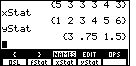
| The press
to paste xStat on the screen and press
to have the TI-86 display the contents of
that list. We press
to paste yStat on the screen and press
to have the TI-86 display the contents of
that list. xStat is a copy of the earlier list, OCL, the list holding the individual distinct values in our list. yStat has values that we have not seen before. In fact, yStat has values left over from some earlier use of this particular calculator. |
The last two screens illustrated the fact that COLLATE3 generates lists OCL and ONL to hold the separate values of our original list and the frequency of those values. Furthermore, COLLATE3 generates a sorted copy of the original list in OSL. And, it appears that OCL has been copied into xStat and the ONL has been copied into yStat. If you examine the program listing for the TI-86 version of COLLATE3, you will find, on the fifth and fourth last lines of the program, statements to perform this copying. Once COLLATE3 has been allowed to complete normally, those copies will have been made.
The first 30 Figures demonstrate statistical processing for a 21-element data set. It is nice to see the TI-86 do all of the computations, but the process seems to take many steps just to process those 21 values. The real power of the TI-86 can be seen if we look at processing a much larger set of data. For example, consider the following table of numbers taken from a sample test on this material.
| -113 | -133 | -132 | -91 | -123 | -121 | -93 | -103 | -104 | -102 | -106 | -126 | -136 | -90 | -120 |
| -105 | -140 | -125 | -127 | -110 | -109 | -109 | -128 | -88 | -114 | -133 | -143 | -120 | -97 | -108 |
| -102 | -107 | -96 | -108 | -91 | -115 | -122 | -122 | -82 | -111 | -130 | -116 | -97 | -122 | -107 |
| -85 | -135 | -116 | -116 | -94 | -91 | -142 | -119 | -119 | -121 | -115 | -117 | -120 | -136 |
We could process this data using exactly the same steps that we used before. The first step will be to get this list into the calculator. Even that seems to be a formidable task. However, in this case, you can generate this same list on your calculator as as L1 via the gnrnd6 program on the TI-86 with SEED 1= 54365448139 and SEED 2= 5391885598 and CHECKSUM=232. We will demonstrate using the program to do this.
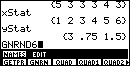
| We move from Figure 30 to Figure 31
by pressing and
to close first the submenu and then
the menu of Figure 30. Then we press
to open the PROGRAM menu, and we
press
to open the NAMES submenu. The program
that we want is not here. We will have to look at more of the submenu to find it.
Therefore, we press
until we find the program.
It appears, on this calculator, in the second position of the submenu on
Figure 31. We paste that name onto the screen by pressing the
key.
|
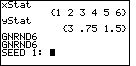
| Pressing the key
will start the GNRND6 program.
In turn, the program prompts us for the first seed value.
|
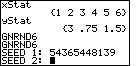
| We supply the seed value by pressing the keys
to generate 54365448139 and then we press the
key to accept that value. The calculator then asks for the seed value.
|
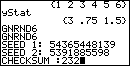
| We enter the
digits for 5391885598 and press
to accept that value. The calculator
prompts for the CHECKSUM. Figure 34 shows all of this, with the calculator
waiting for us to finish our input.
|
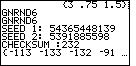
| We signal that we are done with the input by pressing the
key. At this point the calculator will
begin to create a new list called L1, and that list will have the same
values that are in the problem given above. It will take a while
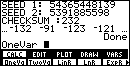
for the calculator to accomplish this, but it is worth the wait. Once the list has been created, the TI-86 will display the list and it will pause so that we may examine the newly generated list. Note that the line of small dots running up the top right side of the screen indicates that we are in a paused condition. The three dots at the right end of the displayed list indicate that we can use the cursor keys to shift the display so that we can review more of the list. |
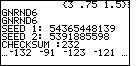
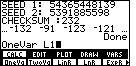
| We generate Figure 36 by pressing
10 times to shift the display so that we can see
more of the list. Comparing this list to the first line of the problem statement
confirms that we have the same list.
|
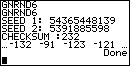
| Remembering that we are not done with the program, it is in a paused
condition, we press
to let the program
continue to its normal termination. When it is finished the word "Done"
appears at the right side of the screen, as in Figure 37.
|
| Now that the COLLATE3 program
has created the list of values in L1, we need to perform
a one variable statistical analysis on those numbers. To do this
we can return to the STAT menu by pressing
, and selecting the CALC option
by pressing
.
This opens the submenu, shown in Figure 38. We press
to paste the
command OneVar onto the screen. |
| Next, we append L1 to our command by pressing
.
|
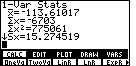
| We tell the calculator to perform our command by pressing the
key. The TI-86 does all of the
computations and displays the first portion of the results. In Figure 40
we see that the mean of the values is – 113.61017.
The other values displayed are as explained above, but are not used in
this course. We do note that there are more values to be seen.
|
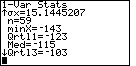
| We can close the submenu via the
key, and then close the menu via the
key. This will give us more room to
use for displaying values on the screen. Then we press
4 times
to arrive at the display in Figure 41. Note that Figure 41 shows the
standard deviation to be 15.1145207,
the median to be – 115, and
the first and third quartile points to be – 123
and – 103, respectively. |
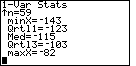
| Pressing
to display the final value for the statistical output, we note that the
minimum value is – 143
and the maximum is – 82. That still leaves us with finding the mode and the frequency distribution table. |
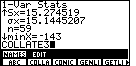
| To find these remaining values we will open the
PROGRAM menu by pressing ,
then open the NAMES submenu via the
key.
The display in Figure 43 shows that COLLA is in the second position of that submenu.
We press
to paste COLLATE3 onto the screen to complete
Figure 43.
|
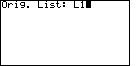
| We start the COLALTE3 program by pressing
. The program clears the screen and
prompts us for the name of the list to process. We create L1 via the
keys.
|
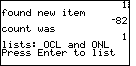
| Press
to have the program accept our name
for a list, and to start processing those values. The program displays
numerous intermediate lines of output, but it stops after it has processed
all of the data, just before it is ready to display the frequency distribution table.
|
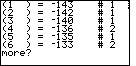
| We leave Figure 45 and start the display of the table by pressing
.
|
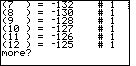
| Press to move onto the next six lines of the
table, shown in Figure 47.
|
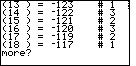
| We press again
to display the next six lines. In this case we might note that both
– 122 and – 120 are reported to
have been in the original list 3 times.
They are the current candidates for the mode value or
values.
|
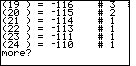
| To move to Figure 49 we press .
Now we can add – 116 to our group of values that have a frequency of 3.
|
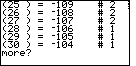
| Another produces
more output.
|
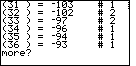
| Another moves us through the next 6 values.
|
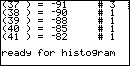
| And, with one more
we can see the final five values in the frequency table. Here we note that we
have yet one more item with frequency 3. Thus, we have a 4-way tie at the modal frequency.
The modal values for our data are – 122,
– 120, – 116, and – 91.
|
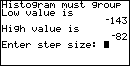
| At the end of Figure 52 the calculator
suggested that it was ready to produce a histogram.
We press to allow the calculator to
continue. Instead of producing the histogram, the calculator responds with Figure 53.
The COLLATE3 program for the TI-86 tries to produce a histogram, and it will do so,
as long as there are no more than 30 bars to the histogram. If each bar represents
a single input value, then with a range of – 143 to
– 82, we would need 62 bars.
The program has detected this problem and is asking us to give a grouping factor so
that we may have a histogram with fewer bars.
|
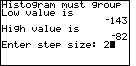
| In this case we attempt to suggest to the TI-86 that
it should use a grouping factor of 2. We do this
by pressing the key.
|
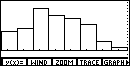
| We press to get the
TI-86 to accept our response. The program verifies that our response will work.
If it will, then the COLLATE3 program goes ahead and produces a histogram.
At this time, although the program has been written to the documentation
specifications, it appears that the TI-86 gets a mind of its own. Note that the
histogram produced does not have groups (steps) of length 2. We have, in Figure 55,
a histogram with a mere 8 columns covering a range of values that have a span of 62.
Each of the bars in Figure 54 must be about 8 values wide.
We will return to this later.
|
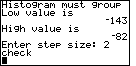
| As noted in the earlier example,
the histogram is on the graphics screen. We can leave
that screen and return to the main screen
by pressing . This
leaves us in Figure 56.
|
Between the built-in statistical features of the TI-86 and the COLLATE3 program we have been able to find the mean, median, and mode of the data values in our list. In addition, we have found the range, the quartile points, and the population standard deviation. The COLLATE3 program also gives us a frequency distribution table, and a histogram.
The collate3 program has some additional by-products. The output for the frequency distribution table is taken from two lists that COLLATE3 creates. The list OCL holds each of the different values found in the original list. The list ONL holds the frequency of occurrence for each of the corresponding values in OCL.
We will recall that the form of the OneVar command demonstrated above required one list, but OneVar has other forms as well. The syntax for the OneVar command allows us to follow the command with a single list of values. That is what we have demonstrated above. Alternatively, the OneVar command allows us to follow the command by two lists, the first holding the different values, and the second list holding the frequency for each corresponding value. That is, the results that we saw in Figure 40 through 42 were the result of the OneVar command in Figure 39. After we have run the COLLATE3 program (that is, after we have generated OCL and ONL) we could use this alternative syntax to issue the command "OneVar OCL,ONL". This would produce exactly the same results that we saw in Figures 40 through 42.
Also, to do its work, COLLATE3 always produces a list called OSL, a copy of the original list but sorted into ascending order. We could have used that list to find values such as the median or the quartile points. There were 59 items in the original list. Therefore, in OSL, which holds the same 59 items but sorted, the 30th item will be the median value. Let us examine this.
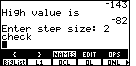
| We will start by opening the LIST
menu via the
keys.
Then we open the NAMES submenu via the
key.
We are looking for the OSL list. It is not in the submenu portion
shown in Figure 57.
|
| Press
to shift the submenu.
Figure 58 shows that next portion of the submenu, and OSL is in the first position
of that submenu.
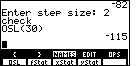
We can create the command OSL(30) by pressing


 .
THen we can perform that command by pressing
.
The calculator responds by displaying the contents of the 30th position in
the list OSL, namely – 115. This is exactly the value
the we found for the median back in Figure 41. .
THen we can perform that command by pressing
.
The calculator responds by displaying the contents of the 30th position in
the list OSL, namely – 115. This is exactly the value
the we found for the median back in Figure 41.
|
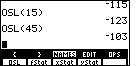
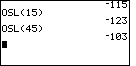
| In the same way the first and third quartile points will be in
positions 15 and 45 of the sorted list. We can have the calculator
display those values via the keys
.
This result is shown in Figure 59.
|
Remember the frequency distribution table output generated by COLLATE3 (see Figures 46 through 52). The explanation of COLLATE3 given above tells us that the values for those displays came from the two lists OCL and ONL. In addition, when we first looked at the lists generated by COLLATE3, we found that OCL is copied to xStat, and ONL is copied to fStat. We will use the Stat Editor of the TI-86 to take a second look at those values.
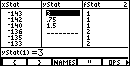
| We left Figure 59 with the STAT menu and its NAMES submenu open.
We can select the EDIT option from the STAT menu
by pressing the
key to indicate that we want to
use the upper menu, and
to indicate that we want the fourth
item in that upper menu. Figure 60 shows the result of using those keys.
The Stat Editor displays a number of lists, and in this case, it shows
the contents of xStat, yStat, and fStat.
We notice that yStat is unchanged from Figure 30, but that xStat
does indeed represent the disticnt values in our last problem, while
fStat holds the associated frequency for each xStat value.
|
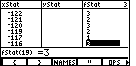
| We can see even more of the values by pressing
to move the
highlight to the fStat column, and then pressing
18 times
to move down the list. |
| We return to the main screen by pressing
.
|
Let us return to the problem of the histogram on the TI-86.
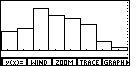
| We press  to
return to the display of the histogram. This also shows us the
GRAPH menu. to
return to the display of the histogram. This also shows us the
GRAPH menu.
|
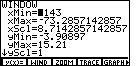
| We press
to select the WIND (window) option
from the graph menu. The TI-86 responds by showing us Figure 64.
In that figure we see that the xScl value has been set to 8.7142857142857.
That value determines the width of the bars in the histogram. The COLLATE3
program had tried, at our request in Figure 54,
to set this to be 2, but the TI-86 changed the setting.
|
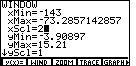
| We can press
to move the cursor
down to the xScl line, and then press
to reset the value.
|
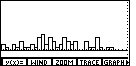
| Now, with the new xScl value set, we press
to return to the graph. Our
changing one of the values in the WIND screen causes the TI-86 to redraw
the histogram. Figure 66 shows us this new histogram, one much more like the
one we expected to see at the end of the COLLATE3 program.
As we examine Figure 66 we do note that the bars are all fairly short. If we look back at Figure 65, we note that the yMax value is 15.21. It is that value that is determining the height of the largest possible bar. We could easily lower that value. |
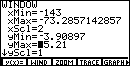
| We return to the WIND menu via the
key.
We move down to the yMax line by pressing
4 times.
|
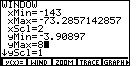
| We can change the yScl value to 8 by pressing
 . .
|
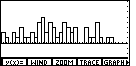
| And we return to the graph screen by pressing
. Before we leave this screen, remember that the horizontal axis is representing all negative numbers for this particular data set. That does explain the dots along the right side of the screen. They are the "tic" marks that inidcate the vertical scale on the screen. The yScl line in Figure 68 has the value 1. Thus, in Figure 69, each of those "tic" marks indicates a step of 1. The highest bar on the screen is only 5 marks high. Thus, that bar represents a frequency of 5. |
©Roger M. Palay
Saline, MI 48176
January, 2000
 , tells us that the sum of the
data values is 70. It is followed by a third line,
, tells us that the sum of the
data values is 70. It is followed by a third line,
 that reports the sum of the squares of the data values is 300. The next value,
 gives an estimate of a standard deviation
based on a sample. This statistic is beyond the scope of the material presented here.
gives an estimate of a standard deviation
based on a sample. This statistic is beyond the scope of the material presented here.
 symbol. This is an indication that
there are more values to display.
symbol. This is an indication that
there are more values to display.
 , and the first quartile point,
 . Another down arrow,