Lecture 8: Linking
Overview:
- The Anchor Tag
- Absolute Links
- Relative Links
- Traversing Directory Structures
- Creating Within-Page Links
- Creating Mailto: Links
- Adding Titles
- Targeting Links
The Anchor Tag
- The anchor tag, coded as <a> </a>, serves as the foundation for the Web.
- Anchors can link together documents, allow the user to move to a different location in the same document, launch email programs, and open new browser windows.
- Anchors are inline elements.
- One important item to note is that anchors cannot be nested within each other.
| Attribute | Usage and Effect | Values Accepted | Default | Deprecated? |
|---|---|---|---|---|
| Note: Additional attributes exist, but are rarely used. | ||||
| accesskey | Keyboard shortcut to select the anchor (the enter key or space bar would then activate the link). Used to improve accessibility, but in practice is seldom specified because of the time involved to code these and the difficulty of conveying these to the user.
In Windows press the 'alt' key (on a Mac use the 'ctrl' key) plus the indicated letter to move the focus to the indicated link. Be sure to specify each accesskey letter only once. |
A single character | Not deprecated | |
| href | By far the most common use of anchors is to link together documents via these href (hypertext reference) values; they are also used to launch email programs. | Document address (either absolute or relative) or mailto: and email address. | Not deprecated | |
| name | This attribute is used to place a within-page anchor. | Name of anchor (your choice; these should be unique and should not be the same as an id value; avoid spaces in value) | Not deprecated | |
| rel | This is a forward link. It specifies the relationship between the current document and the document being linked to; these are not used very frequently.
They could assist search engine spiders in indexing content, assist by preloading the next document (in a sequence), or otherwise provide meaning. |
Mouse over the value for details:
start | next | prev | previous | contents | toc | index | glossary | copyright | chapter | section | subsection | appendix | help | bookmark |
Not deprecated | |
| rev | This is a reverse link. It is just like rel, just in the opposite direction. Again, not used very frequently.
They could assist search engine spiders in indexing content or otherwise provide meaning. |
Mouse over the value for details:
start | next | prev | previous | contents | toc | index | glossary | copyright | chapter | section | subsection | appendix | help | bookmark |
Not deprecated | |
| tabindex | Determines the tabbing sequence for objects on the page. | Number from 0 to 32767; leading zeros are usually ignored. | Not deprecated | |
| target | Allows you to specify the browser window where the linked document will open; used primarily for frames-based layouts.
Can be used to open new browser windows, although this has been deprecated in favor of using JavaScript to open new windows. |
Name of window
"_blank" to open a new window Some other pre-determined values are also available (covered in INP 170) |
Deprecated | |
Absolute Links
- Absolute links give the complete address to the document online.
- You must include the http:// for these to work properly.
A sample absolute link is:
Visit the <a href="http://www.wccnet.edu">WCC website</a>.
Or a navigation bar (the domain is www.sample.com):
<p><a href="http://www.sample.com/products.html">Products</a></p>
<p><a href="http://www.sample.com/services.html">Services</a></p>
<p><a href="http://www.sample.com/clients.html">Clients</a></p>
<p><a href="http://www.sample.com/jobs.html">Jobs</a></p>
- The main drawbacks of absolute links are their length (the entire path needs to be specified) and their inflexibility. If you change your domain name all the paths need to be updated.
- In professional web design absolute links are used only when necessary. Almost all links are relative.
Relative Links
- Relative links use a partial address, based on the path between the current document and the document linked to.
- Compared to absolute links, relative links are shorter and your domain can be changed without breaking links. You can also easily move files from one server to another without breaking links, as long as the directories maintain the same relative locations.
- By default, all links are assumed to be relative unless http:// is used.
- All directory and file names are case-sensitive because the student server is Unix-based, so be careful to match capitalization properly in your code!
If you just specify the file name, the web server looks in the current directory:
<p><a href="products.html">Products</a></p>
<p><a href="services.html">Services</a></p>
<p><a href="clients.html">Clients</a></p>
<p><a href="jobs.html">Jobs</a></p>
All of the files referenced in the above code would be in the same directory.
If you are moving up a directory level, specify ../ for every level you are moving up. Since a directory can only have one parent directory, ../ can only have one value.
If you wanted to reach a file named example.html two directory levels up, the code would be:
<a href="../../example.html">View the example</a>
If you are moving down a directory level, you have to specify the exact directory name (remember that capitalization matters).
If you wanted to reach a file named example2.html that is in the 'coding' subdirectory (which is inside the 'examples' directory), the code would be:
<a href="examples/coding/example2.html">View the second example</a>
Paths can move up and then down again, as necessary. It all depends on your directory structure. What path would this be?
<a href="../../examples/coding/example3.html">View the second example</a>
Traversing Directory Structures
To provide additional examples of relative linking, the following diagram has been created showing a directory structure:
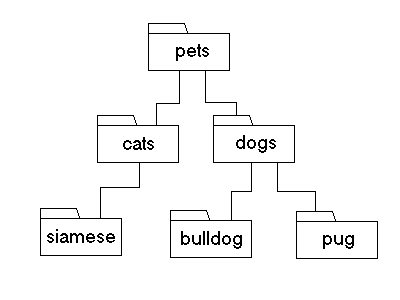
- To link from a file named index.html file in the 'pets' directory to a links.html file in the same directory, the link is:
<a href="links.html">Links</a>
- To link from a file in the 'pets' directory to a file named siamese.html in the 'siamese' directory, the link is:
<a href="cats/siamese/siamese.html">Siamese</a>
- To link from a file in the 'dogs' directory to a file named pug.html in the 'pug' directory, the link is:
<a href="pug/pug.html">Pugs</a>
- To link from a file in the 'siamese' directory to a file named index.html in the 'pets' directory, the link is:
<a href="../../index.html">Pets</a>
- To link from a file in the 'dogs' directory to a file named index.html in the 'pets' directory, the link is:
<a href="../index.html">Pets</a>
- To link from a file in the 'cats' directory to a file named bulldog.html in the 'bulldog' directory, the link is:
<a href="../dogs/bulldog/bulldog.html">Bulldogs</a>
- To link from a file in the 'siamese' directory to a file named pug.html in the 'pug' directory, the link is:
<a href="../../dogs/pug/pug.html">Pugs</a>
- To link from a file in the 'dogs' directory to a file named index.html in the 'cats' directory, the link is:
<a href="../cats/index.html">Cats</a>
Creating Within-Page Links
- There are two ways to create within-page links, which move the browser window focus to the indicated area of the document.
- Users expect links to take them to a different page, so it is critical that you inform users that a link goes to a section/area of the same page. Otherwise their initial reaction will be confusion and disorientation.
Approach 1:
The first approach is older and, as a result, is supported by older browsers as well as newer browsers.
This approach sets the within-page location using the name attribute inside an <a> tag. Where that <a> tag is located in the page determines the anchor location.
Then the link to that part of the page uses the href attribute; its value is a # sign in front of the name specified elsewhere in the document. The # sign is always used to indicate within-page sections.
Approach 2:
The second approach is newer and only works in newer browsers. Support is lacking in some version 4.x browsers as well as earlier browsers.
This approach uses the id attribute inside the <a> tag (or another tag) to set the within-page anchor location.
Just like Approach 1, the link to the within-page anchor uses the href attribute, with its value set to a # sign followed by the id value for that part of the page.
- Note: Within a web page a name attribute and an id attribute cannot share the same value, because of the confusion that would result if a within-page link pointed to that value. These can only share the same value if they are inside the same tag (because then there is a shared destination for any links), but usually you specify one attribute and not both. Within a document, each id value must be unique and each name value must also be unique (two ids cannot share a value and two names cannot share a value).
-
When deciding between the two approaches, one other advantage of Approach 1 (beyond more extensive browser support) is that the name can contain special characters, which are covered in a future lecture.
The id values cannot use these special characters (they are limited to regular alphanumeric characters), however, an id can be used for CSS, JavaScript, and are used in some (X)HTML accessibility enhancements.
It is also possible to specify id attributes in almost any tag that is valid within <body> (including <body> itself), so the within-page area can be tied to practically any tag. The name attribute is limited to certain tags and will only work as an anchor when specified inside <a> </a> tags.
-
You can link directly from one page to the section of a different page.
Lets assume that you created a within-page section named "section1" (either <a name="section1"></a> or specify id="section1" inside a tag in the desired area of the page).
If the file containing the named section is example1.html, the link would be:
<a href="example1.html#section1">Go to Section 1 of the Example</a>
Sample code for Approach 1:
<!DOCTYPE html PUBLIC "-//W3C//DTD XHTML 1.0 Transitional//EN"
"http://www.w3.org/TR/xhtml1/DTD/xhtml1-transitional.dtd">
<html xmlns="http://www.w3.org/1999/xhtml" xml:lang="en" lang="en">
<head>
    <title>Within-Page Links (Approach 1)</title>
    <meta http-equiv="Content-Type" content="text/html; charset=utf-8" />
</head>
<body>
    <p>
    On This Page:<br />
    <a href="#section1">Section 1</a><br />
    <a href="#section2">Section 2</a><br />
    <a href="#section3">Section 3</a>
    </p>

    <br /><br /><br /><br /><br /><br /><br /><br /><br /><br /><br /><br />

    <h1><a name="section1">Section 1</a></h1>

    <br /><br /><br /><br /><br /><br /><br /><br /><br /><br /><br /><br />

    <h1><a name="section2">Section 2</a></h1>

    <br /><br /><br /><br /><br /><br /><br /><br /><br /><br /><br /><br />

    <h1><a name="section3">Section 3</a></h1>
</body>
</html>
Sample code for Approach 2:
<!DOCTYPE html PUBLIC "-//W3C//DTD XHTML 1.0 Transitional//EN"
"http://www.w3.org/TR/xhtml1/DTD/xhtml1-transitional.dtd">
<html xmlns="http://www.w3.org/1999/xhtml" xml:lang="en" lang="en">
<head>
    <title>Within-Page Links (Approach 2)</title>
    <meta http-equiv="Content-Type" content="text/html; charset=utf-8" />
</head>
<body>
    <p>
    On This Page:<br />
    <a href="#section1">Section 1</a><br />
    <a href="#section2">Section 2</a><br />
    <a href="#section3">Section 3</a>
    </p>

    <br /><br /><br /><br /><br /><br /><br /><br /><br /><br /><br /><br />

    <h1 id="section1">Section 1</h1>

    <br /><br /><br /><br /><br /><br /><br /><br /><br /><br /><br /><br />

    <h1 id="section2">Section 2</h1>

    <br /><br /><br /><br /><br /><br /><br /><br /><br /><br /><br /><br />

    <h1 id="section3">Section 3</h1>
</body>
</html>
Creating Mailto: Links
- These links open the user's default desktop email program and provide the supplied address in the 'To:' field.
- These use the href attribute and the address is preceded by 'mailto:'
-
A sample mailto: link would be:
<a href="mailto:jwithrow@wccnet.edu">Email Jason Withrow</a>
To improve usability, give the email address in the linked text, so that users can copy/paste it into a web-based email program (or non-default desktop email program):
Email Jason at <a href="mailto:jwithrow@wccnet.edu">jwithrow@wccnet.edu</a>
Adding Titles
In some cases it can be helpful to add the title attribute to the links, in order to supply additional details beyond what the linked text indicates.
<a href="article.html" title="Published June 2006">Read the article</a>
Targeting Links
- INP 170 covers link targeting in greater detail. The one value we will discuss is _blank, which opens the target document in a new browser window and is coded as:
<a href="example.html" target="_blank">See the example</a>
- The target attribute is deprecated, so this will only validate under Transitional doctype. Under Strict doctype, JavaScript needs to be used to open new windows, which gives you much more control. Using _blank does not provide any control over window settings or size.
- Note: Pretty much any value assigned to the target attribute will open in a new browser window, because the browser looks for a window of that name and, not finding it, opens a new browser window. However, any subsequent use of that same name will load the targeted document in the window already open. For example, you will see web authors specifying target="blank" for all their links. Each link re-uses the same browser window (which is named "blank" behind the scenes). Only target="_blank" will keep opening new browser windows each time one of the links is clicked.