Lecture 5: FTP
Overview:
- Introduction to FTP
- Your Space on the Student Server
- File Transfer with FileZilla
Introduction to FTP
- FTP stands for File Transfer Protocol. We use FTP programs to get our files on the server.
- FTP does not encrypt the files as they are sent between your computer and the server, so someone monitoring the data packets could see all the information.
- To address this limitation SFTP (Secure File Transfer Protocol) was introduced. SFTP is an option that can be selected in most FTP programs. The WCC student server supports both regular FTP and SFTP. How you decide to transfer your files is at your discretion.
- When transferring a file, it can be transferred as either ASCII (this might be listed as \'Text\') or binary.
- When you save your file in Notepad, it is stored as ASCII, which uses only the first 7 bits out of the 8 bits in each byte. Files saved as binary (such as Word documents, PDF files, Excel spreadsheets, graphics) use the entire 8 bits in every byte.
- Your text files (.htm, .html, .css) can be transferred as either ASCII or binary, although generally I transfer them as ASCII.
- Images (.jpg, .jpeg, .gif, .png) must always be transferred as binary. Transferring as ASCII/text will very likely corrupt the image (since it is missing one eighth of its information).
- Most FTP program have an \'Auto\' setting that switches transfer mode based on the file extension (this is one more reason why having a file extension is important). If the FTP program does not recognize the file extension, it assumes binary since that is the safer mode to use for an unknown file type.
Your Space on the Student Server
- Every WCC student has 5 megabytes of space on the student server (stu.wccnet.edu); INP students are supposed to have an additional 5 megs for every INP class they take in a given semester.
- That space is shared between your WCC student email and your web files, so really large file attachments (and/or thousands of emails) could result in your space being depleted.
- Earlier in the semester you established your email account. You use the same username and password to connect to the student server.
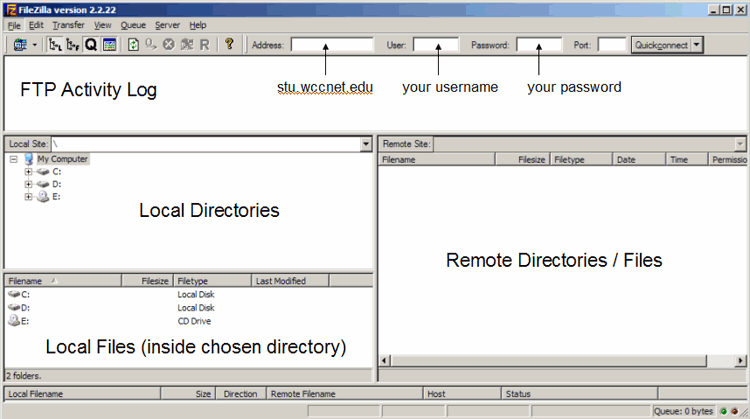
- The hostname/server name to use is: stu.wccnet.edu
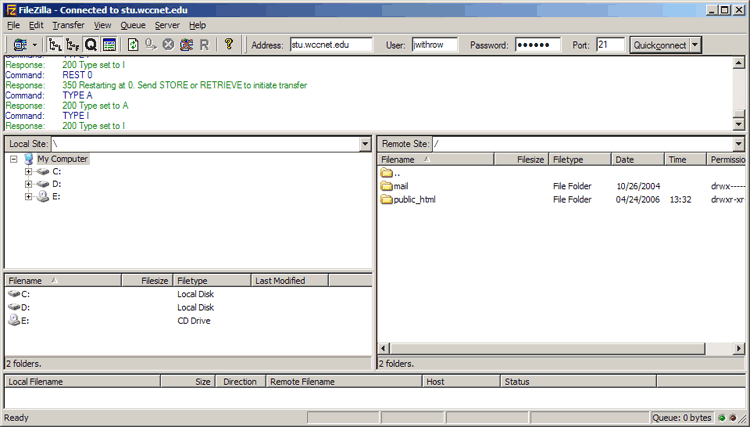
- Everything that will be visible on the web needs to be inside a directory named public_html
- Your web materials can be accessed at: http://stu.wccnet.edu/~username
- Note that your username is preceded by the tilde character.
File Transfer with FileZilla
- You can use any FTP program to transfer your files, but in class we will be looking at FileZilla. FileZilla is freeware, so there is no cost to use the software. A link to download FileZilla is available from my INP 150 class materials page, or just do a Google search.
- I will need to show you where the desktop is located in FileZilla; in the INP labs it can be hard to find.
- Drag folders/files to transfer them between local (your computer) and remote (the server) and vice versa.
- You can drag files from the desktop to the remote side but, sadly, not the reverse.
- Right-click on the remote directory area and choose \'Create Directory\' to establish your public_html directory.